show the value of a task in another task in the same map

Jörg shared this question 45 days ago
Discussion Open

Is it possible, when entering a value in one process, to have that value directly transferred and displayed in another defined process in the map ?

Replies (3)

photo
1

Yes, assuming you are talking about values in topic properties. You can apply a formula to the topic where you want the value to appear - this would take the form of the property name for the value you want to add which is then equal to the property in nominated source topic.

So, for example, you would add the formula [Employees]=topic[Employees Total] where "topic" is the source topic (this always just appears as "topic" and you have to hover over it to get the topic name) and "Employees Total" is the relevant topic property in the source topic.

Bear in mind however that even after nominating the topic the list of topic properties you get to select from is in fact the list of all properties across all topics in the map which can be a little confusing.

photo
1

Good morning Jörg.

If that isn't the solution you're looking for, could you describe it using an example?
I control where I get the result from using this:

00dd048ce1aefbbf90fb49921cc3ef72d002a3acf35a9f29ed09f4495f7df3ad

photo
1

Thank's for your answers, but I think I didn't describe my question very well.
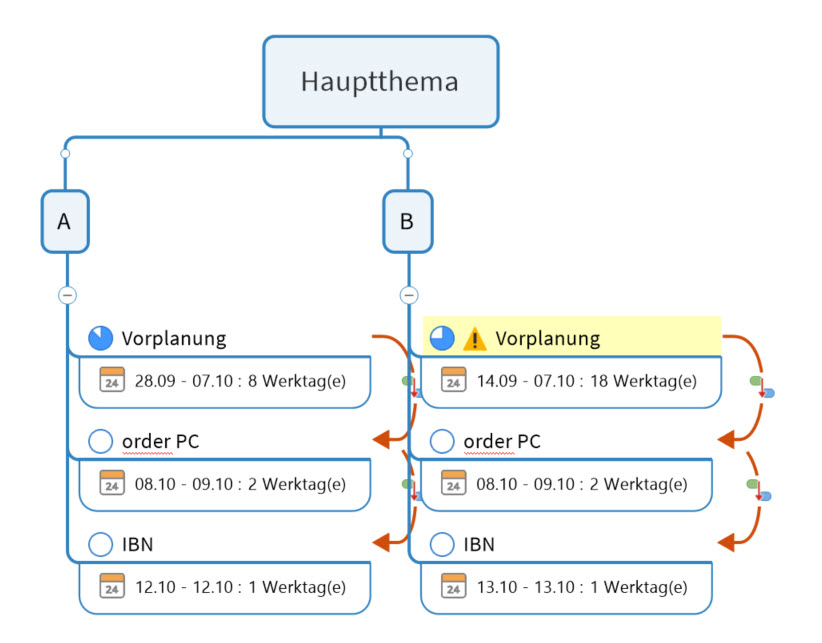
order PC is the same TASK in this two different projects
The task ist one big order for different projects
Is it possible to set 100 % only in the left project and automaticaly the same happens in the rigt project ?
f4e0aae08910d803de775baa56bf0c96181716847fb31bc5c427774cb988f8c8

photo
1

This is possible, but as far as I can tell only in a roundabout way using a combination of a formula and a SmartRule.

Consider the following map:

4d2f444e31d99e1c6c53608e7d40787518a63eba491d73743b0d3608c4ca5e4f

The formula [PC Order Progress]=topic.Progress is applied to the Task Order PC B, setting up the topic property PC Order Progress which points to the Task Progress in Order PC A. Then the following SmartRule comes into play:

c79aba0ab27f3f43e7e7b78c50af27504f6227c8e82a157c2275221ab8338d76

In case the image is unclear, the trigger is the PC Order Progress topic property you have just set up in the Order PC B task and the SmartRule is set to apply only to this task.

If this is 100% - which means the Order PC A is 100% - then the Effect is that the Task Progress in Order PC B is set to 100% - finished.

This SmartRule is triggered only if the "source" topic task progress is 100%, but you could set up similar rules for other task progress percentages and apply them to Order PC B.

As in your example I've rolled up Progress only to the parent main topics. If however you were to roll up to the central topic then the level of progress could be misleading because it is essentially counting the same task progress twice.

photo
1

Could you use Map RollUP for this?
It is in the advanced tab

It works in the same map as well as in other maps.

photo
1

Thanks Ary, I'd forgotten that not only can you roll up within the same map, but also roll up a single topic to another topic in the same map.

However, this may not work so well if you want to establish a link between existing topics, especially if they form part of complex projects.

photo
1

Hi Alex, thanks for your instruction but in the moment it doesn't run by me.
Please what's the reason and the function of level 2 in all tasks ?
d7932b9c20014422090c9454e29ddfbbe1a4ec711252221ac29b11944aa63b3f

photo
1

Hi Jörg,

Apologies for not getting back to you earlier and also regarding the Level 2 property. This is an unrelated SmartRule which I accidentally left in the map - it's part of a set of SmartRules I use to show topic level as a property, but it shouldn't affect anything. You can delete this property.

I think there are two issues with your map:

  1. The ProgressRule SmartRule which sets Task Progress on Order PC B is set to be triggered only when the Topic Property PC Order Progress on this task is 100%. This in turn is set by the formula which makes PC Order Progress equal to the Task Progress on Order PC A, so if the latter is 0% as shown in your map (or indeed anything other than 100%) the Task Progress on Order PC B will remain at zero.
  2. Point 1 assumes that the formula is correct. My German is not what it used to be so I had to look up the formula you used, but translated into English it appears to be [PC Order Progress]=parent.progress. In English the correct formula is [PC Order Progress]=topic.progress, so in German I think this should be PC Order Progress]=Zweig.Fortschritt, assuming "zweig" is "topic" and this is pointing to the topic Order PC A.

I hope this helps - please let me know if it doesn't.

photo
1

Hi Aley,
To rule out translation errors, I switched the language in my MindManager to English.
I delete all Level 2, but I couldn't find a mistake...
new: yellow exclamation mark, I don't know why
Thank you very much for your patience.

83eded9f6189c835c5388c72651c4c1a397d43a8efc48d39999db7f9c09c2b3a

formula
e28db2c1cf30f12cde7bff263e6fc58813c64f97ec16d3108b82164cc42a300f
Smart rule

eaff08bb51ca8b0fa971335ba7a56b1aeb6c51e4e6158f4f875a60d068652072

after set order PC A manual to 100%

aaa9e029695e4b42413f4413073343d205575091e3cea522b0389ce9deb6c383


and if I change the language back to german

e276c64ee1846d9564aa7d8abacc7d34cd8697066514d7a7e9cfa9ff4154fcd7

photo
1

Hi

When you set up the formula did you point to the correct topic?

In the formula bar, after entering the name of the property you want the formula to create (in this case [PC Order Progress]) and the equals sign in the equation, you click on the last icon with the little arrow which lets you choose a topic:

ddc718f11e0038051d0c520e1ec0c657b89df177ead8f176c43b3e74a6893a94

The words "Choose a topic" (or the equivalent in German) should then appear, and the cursor should have either a red circle and bar if you are not pointing at a topic, or a blue plus sign if you are. Move to the correct topic (in this case order PC A) and left click. Then add a full stop, click on the Insert Task Attribute icon and select "Progress".

The formula should then look like this:

99baf281799c97d458762a536359f674dc836758126b9470c2295c9bed51b7fb

The word "topic" is only shown in blue and underlined if the equation is selected.

I've attached the actual map I set up. I've left in the SmartRules that format the topics according to their level but you can ignore these - the only one that's relevant for your purposes is the last one:

943adfcf3153ed2f52750f901c6d8716a5d42210caebeef171c30a4a93abf14c

8633fbc31e5c33188e94a1bca48a89f49e51533d459106185b9fb70a913b4faa

photo
1

Hi Alex,
the right button... Insert Topic.... I never used it before :-)
and now it runs - wonderful
Thanks Alex

photo
1

is there a possible way to use any value between 0 and 100 progress ?

photo
1

Hi Jörg,

Thanks - I’m glad it worked out. I think a lot of people don’t fully understand this button or its full potential.

In answer to you question, the short answer is that to add other percentages you simply need to add a SmartRule for each percentage you want to show that follows the same structure as the ProgressRule I set up. With hindsight I should have called this 100ProgressRule or something similar, so you could have a 50ProgressRule and so on.

This is simple enough if you just want to add rules for the quartile percentages: 0%, 25%, 50%, 75% and 100%. This would require five SmartRules. If however you want to include all the percentages that MindManager can display you would need to add the following: 10%, 35%, 65% and 90% which would require another four SmartRules.

photo
1

Hi Alex,
I'm also happy that it works. So I make additional 4 smart rules for other percentages.
Have a nice weekend.

photo
1

Thanks Jörg.

Before I forget, I should point out that this approach works fine if you want to mirror task progress to another task where the source task is updated directly by you as the user. This is because you can only use the preset task percentages, and all you need to do is to set up SmartRules which use these percentages as the trigger.

If this is all you intend to do then you don't need to read on!

However, if you do intend to use this approach in scenarios where the source task is itself rolling up progress on subtasks things are a bit more complicated. This is because once the different levels of completion of the subtasks are added up you can get percentages that fall between the presets that are MindManager uses with each of the progress icons, for example, 5% or 20%. This means that none of the SmartRules will apply.

The way around this is to change the SmartRules so the triggers capture these percentages (which essentially is what MindManager does to display the next highest preset percentage). So for example to capture 20% you would use the 25% progress icon, but instead of the single trigger "PC order progress=100%" you would use two triggers: "PC order progress>0%" and "PC order progress<=25%". Both criteria need to apply, and if you set the rule up properly 25% should appear in the mirrored topic for any rolled up progress percentage from 1% to 25% in the source topic.

photo
1

Correction: where I said ‘instead of the single trigger "PC order progress=100%"’ I of course meant ‘instead of the single trigger "PC order progress=25%”’

photo
1

Hi Alex,
thanks for your hint, but in the moment the easy way is the way for me.

photo
Leave a Comment
 
Attach a file
You can't vote. Please authorize!
